New Filemail Outlook Add-in
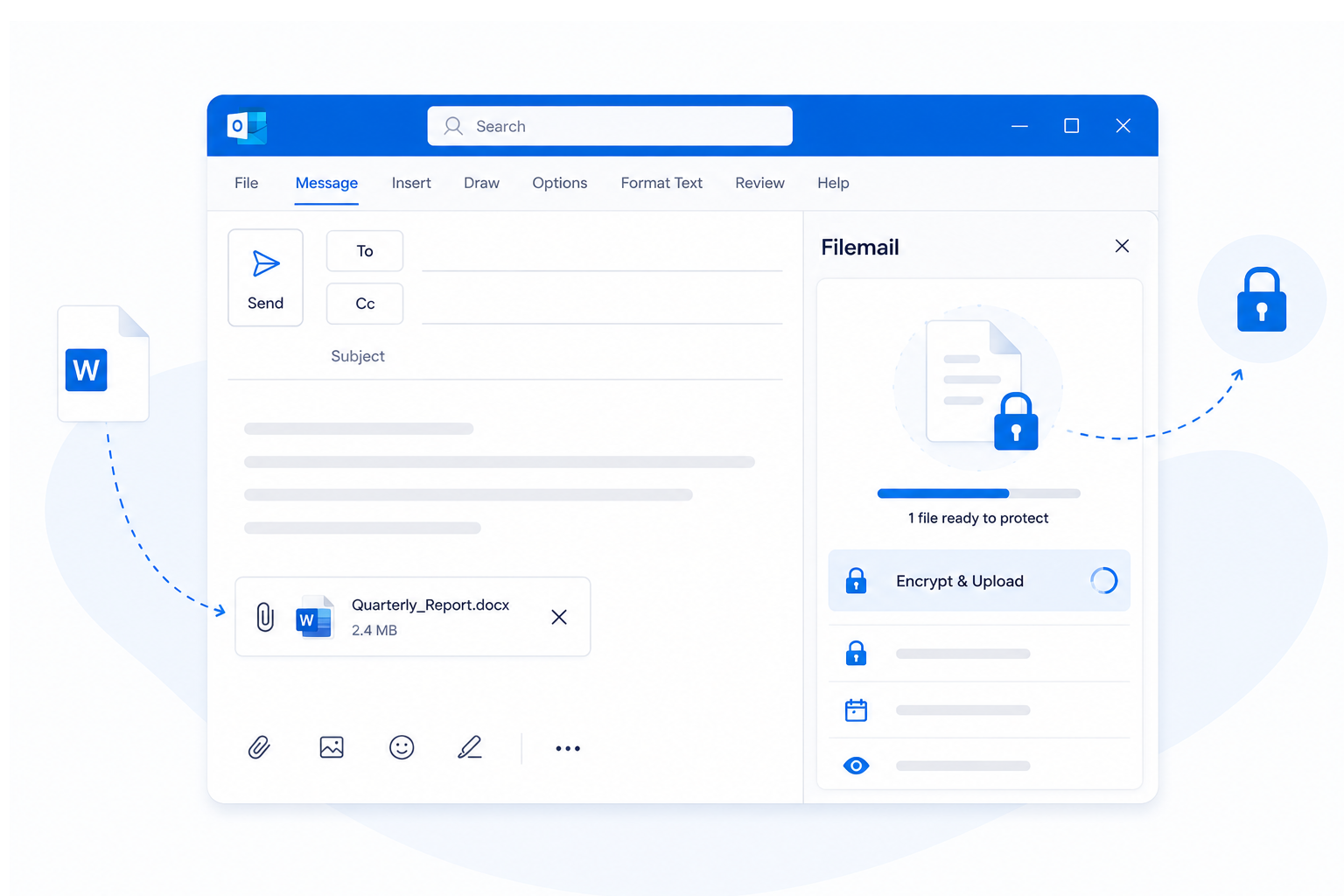
Outlook Native End-to-End Encrypted File Transfers
Our new Filemail Outlook add-in enables you to securely email end-to-end encrypted files directly from Outlook. With minimal disruption to your existing email routine, our add-in provides robust protection when sending sensitive documents.
You can use end-to-end encryption, expiry dates, download tracking, and other Filemail features without leaving Outlook. Encrypted file transfers is available for Filemail users on Business and Enterprise plans.
Minimum Disruption To Your Email Workflow
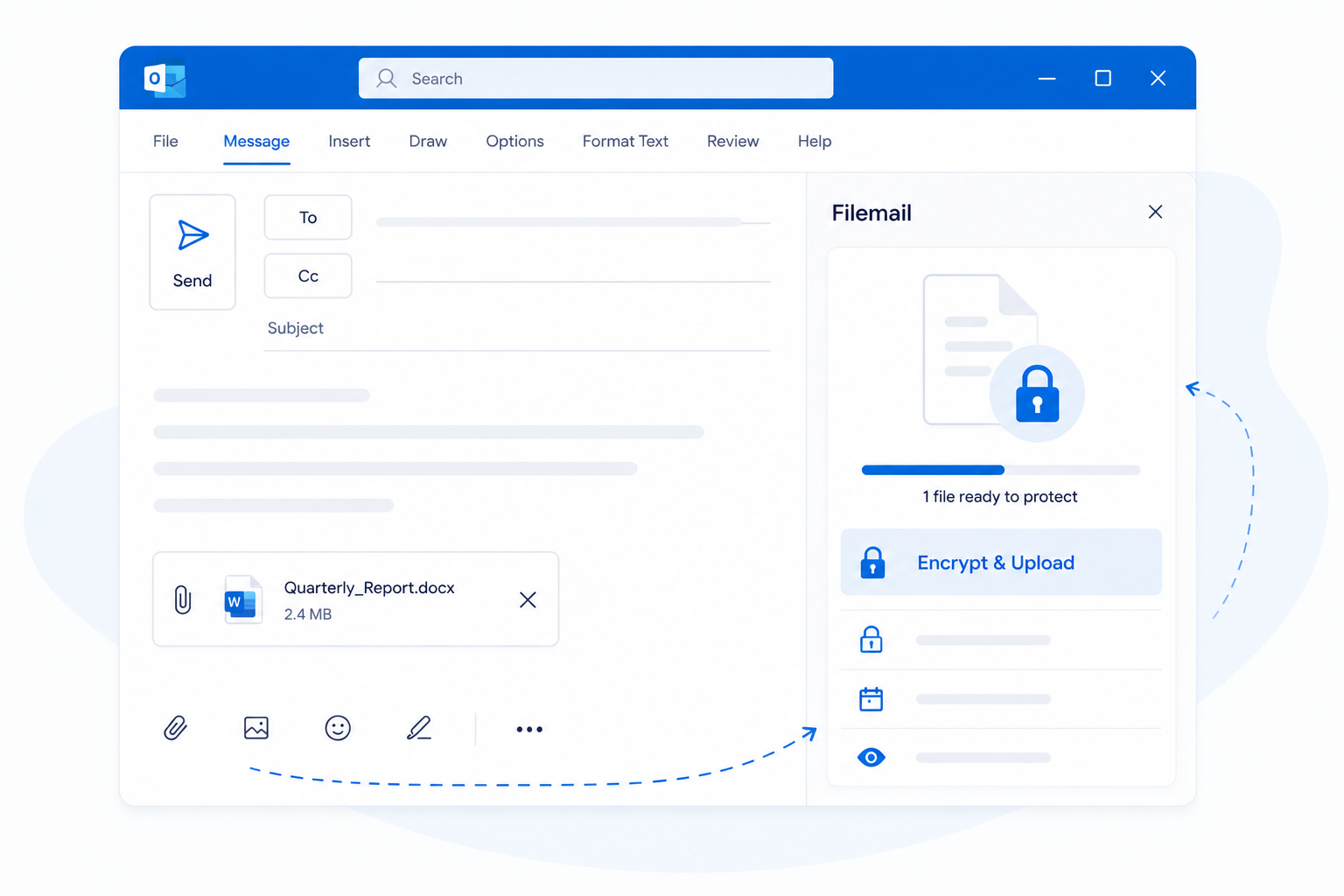
Keep using Microsoft Outlook as you always have. We understand that email usage is a deeply entrenched behaviour. Unlike rival Outlook add-ins that impose processes that severely disrupt established workflows, we preserve your established practices.
Our add-in integrates directly into the Outlook workflow you already use. Your email threads and shared files stay together in Outlook. This keeps the conversation in one place rather than being split between Outlook and separate file-sharing services.
Just One Extra Step To Your Existing Email Routine
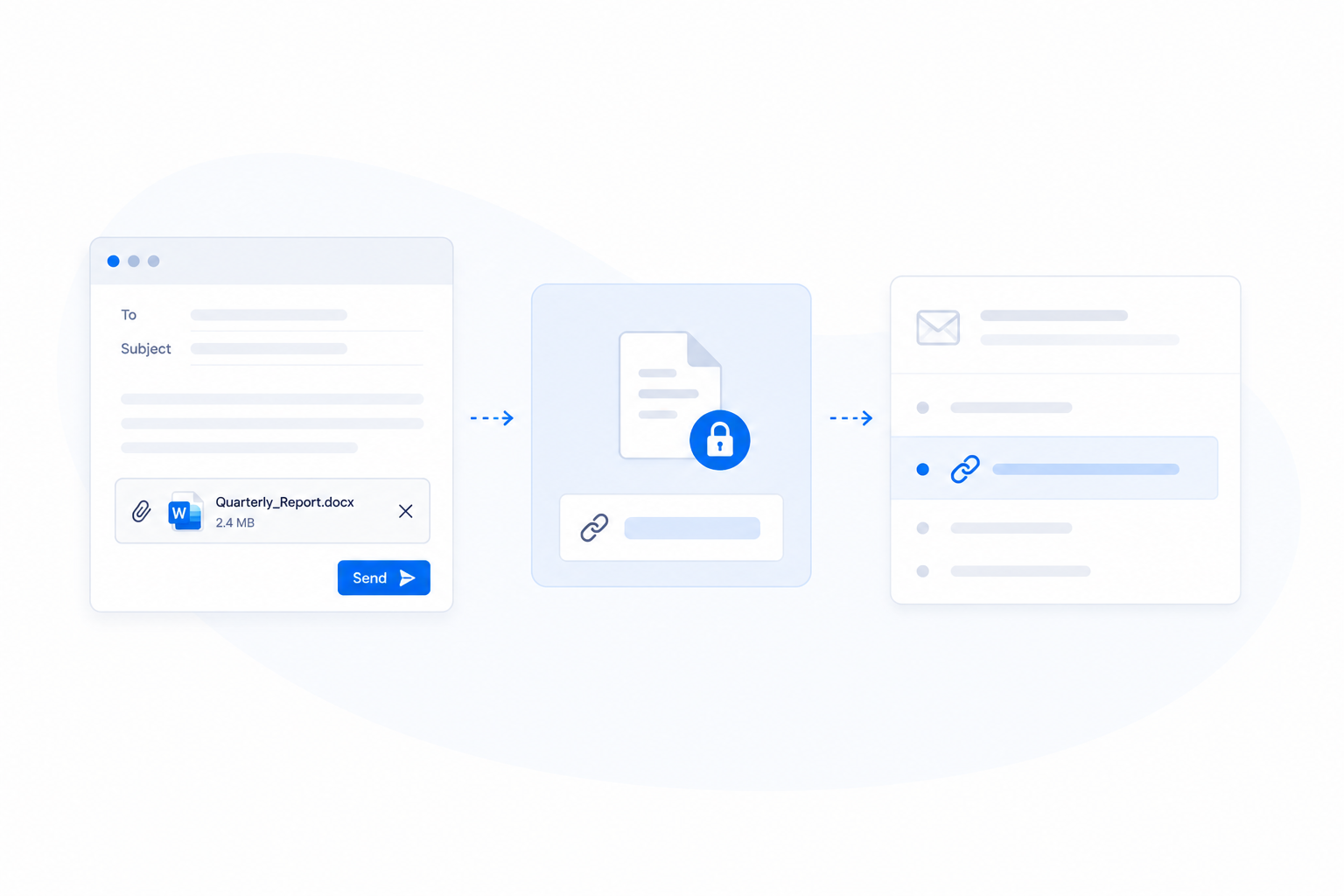
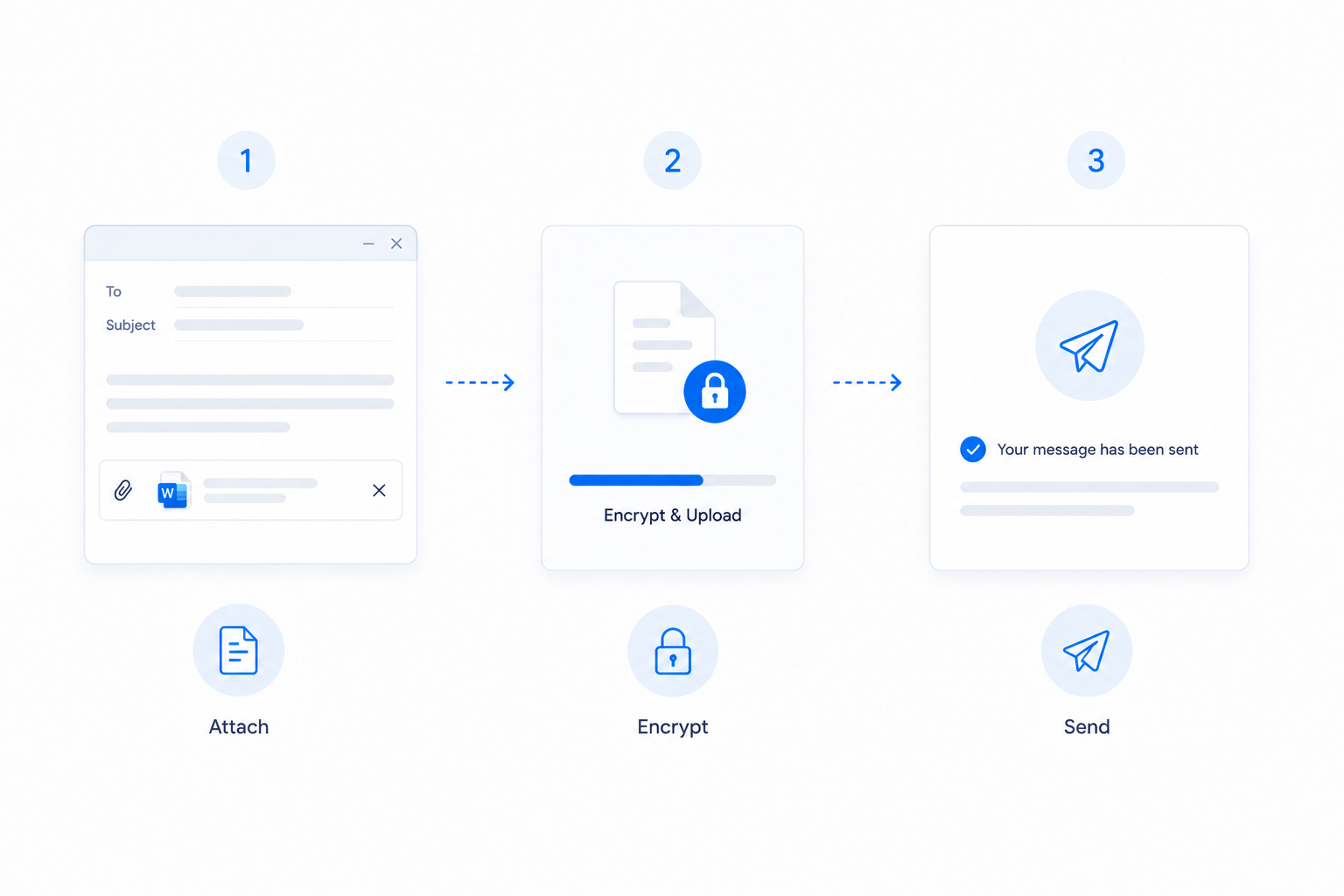
You attach the files as you normally would by navigating to and selecting them. Click on the Encrypt and Upload button in the Filemail pane. Filemail seamlessly enables encryption and upload of the files.
Filemail replaces the attachments with a secure download link, and prepare the email for sending. A clear message is provided in the Filemail pane when the process is complete, prompting you to click on the Send button.
Filemail’s Outlook E2EE Process
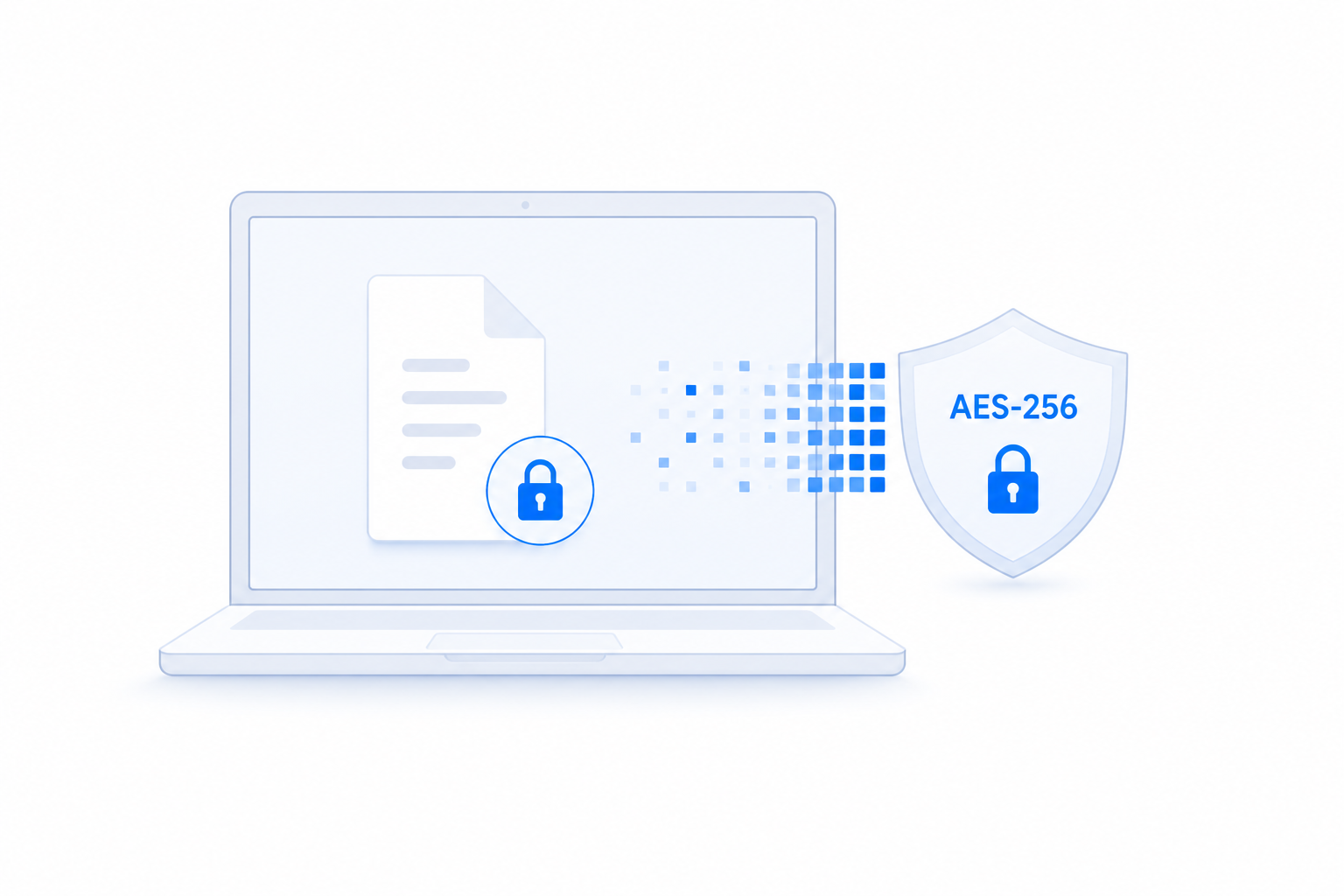
Our E2EE process starts while the files are on your device. They are encrypted using AES-256 before upload to our secure cloud infrastructure. During file transfer we use HTTPS and TLS 1.2 to ensure the transfer from your device to our cloud is encrypted as well.
Once the files are uploaded, the Filemail Outlook add-in will insert the download link to the files into your email. You can choose to position the download link, either at the bottom of the email or your current link position.
3 Ways To Share The Encryption Key
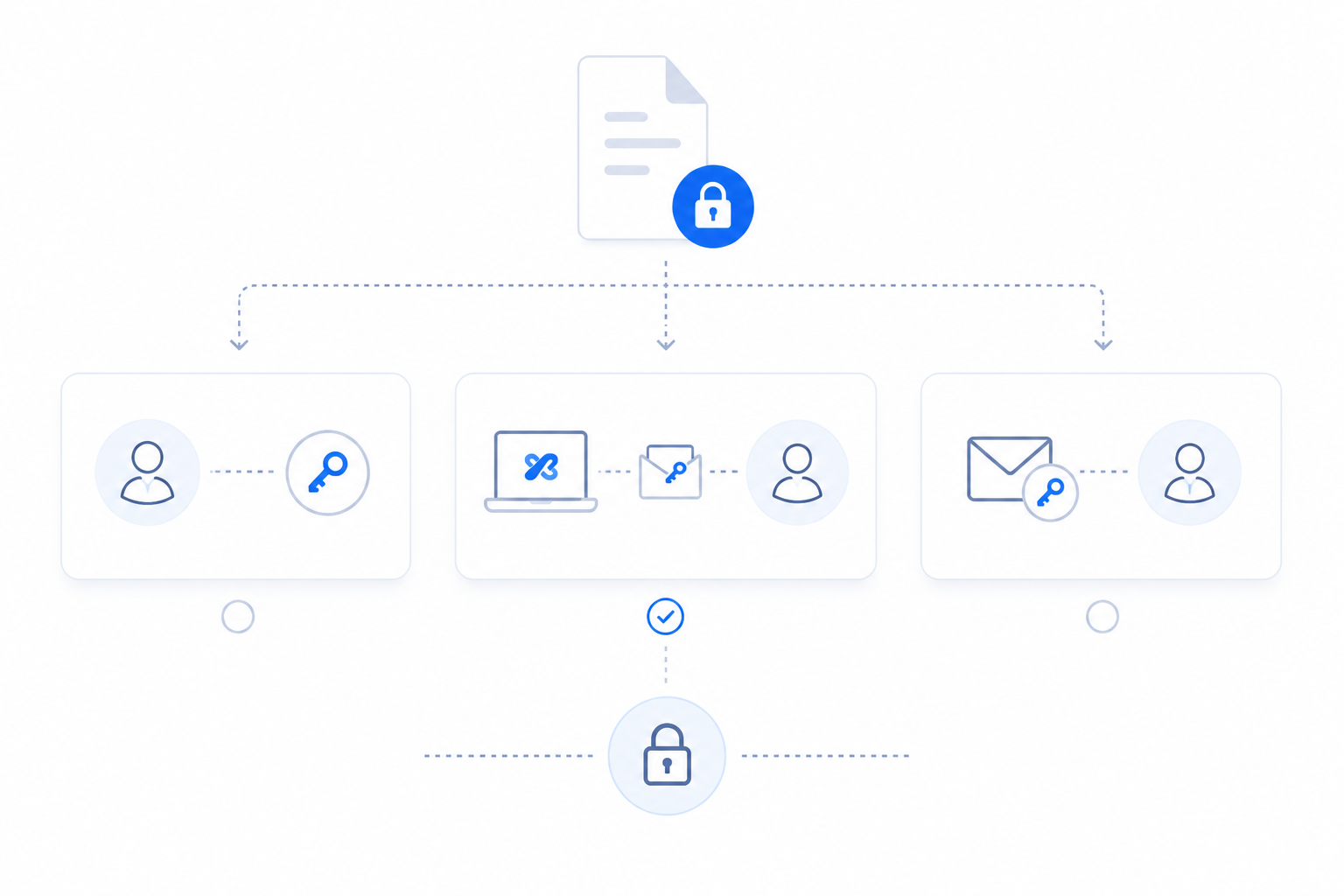
When sending encrypted files, choose how the encryption key is delivered to the recipient:
- Share The Key Yourself: You deliver the encryption key using a separate trusted channel.
- Filemail Delivers The Key Separately: Filemail sends the encryption key in a separate email.
- Include The Key In The Same Email: The encryption key and download link are delivered together.
No matter the manner of sharing the encryption key, your recipient cannot access any files without it.
Recipients Download Files Securely
The recipients you share files with using Filemail will receive your email that you sent from Outlook. The email will contain the secure download links to your files that Filemail automatically inserted.
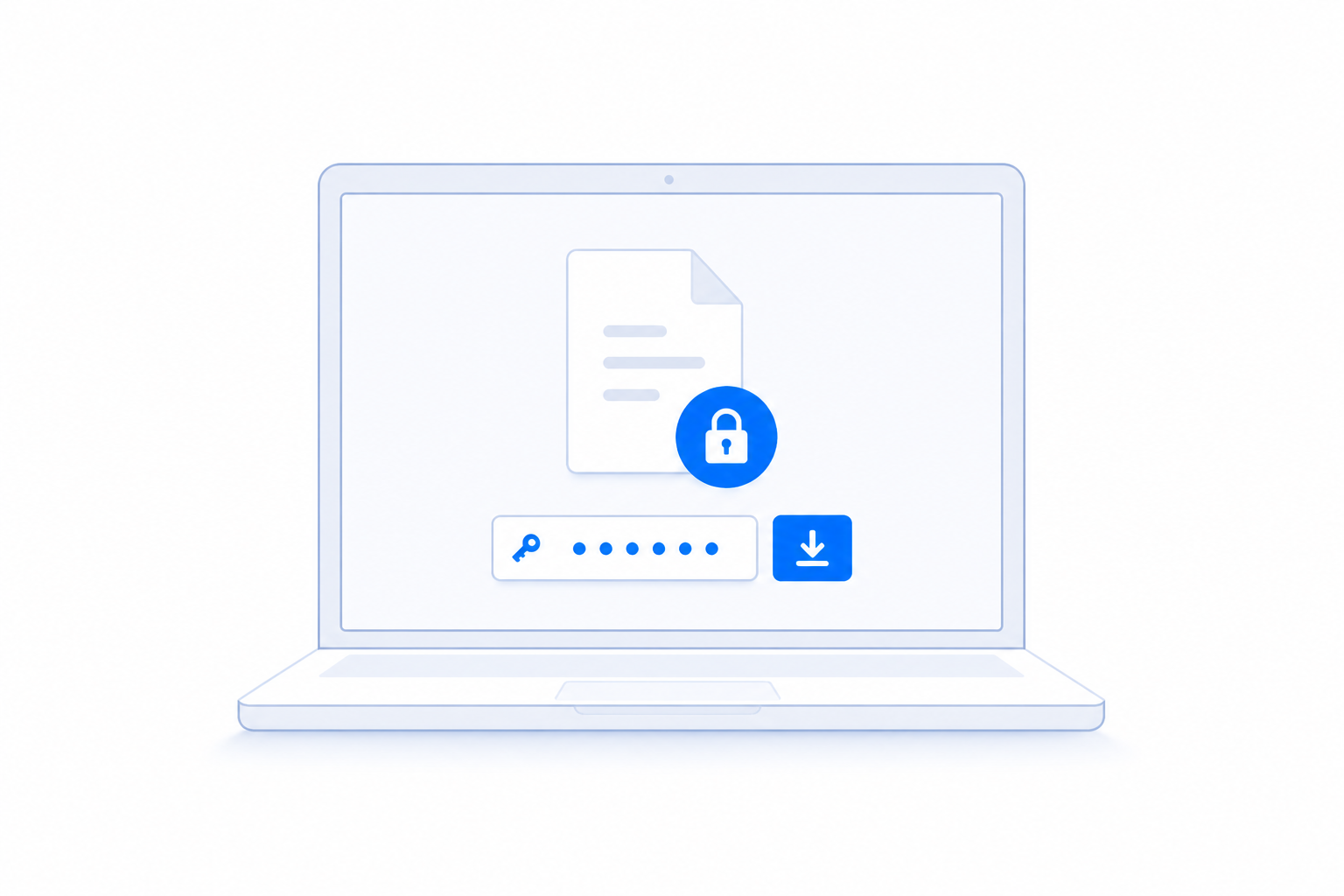
Upon clicking on the download link, the recipient will be sent to the download page that contains your files. To access the files the recipient must use the encryption key.
Customers Ask, We Answer
The Filemail Outlook add-in supports the Outlook client and Outlook on the web. Once installed, the Filemail task pane opens on the right-hand side of Outlook. If the task pane is not visible, select the add-in (Filemail icon) on the Outlook Ribbon to open it.
There are two one-time steps required to get started.
- Install the Filemail Outlook Add-in. We offer guides on Personal Installation, and Organizational Deployment.
- Sign in once using your Filemail account.
After that, you continue sending emails as you normally would.
We have kept disruptions to your email routine to an absolute minimum. There is only one additional thing you need to do when sending encrypted files. After attaching your files, simply click Encrypt & Upload before sending your email. The Filemail pane will clearly instruct you when to click on send.
Filemail securely encrypts and uploads attachments to our secure servers. The Outlook add-in will then automatically insert download links pointing to your attachments.
End-to-end encryption is available with Business and Enterprise plans. The Filemail Outlook add-in is free to install and use. All Filemail plans include a 7-day free trial, allowing you to evaluate end-to-end encryption before subscribing.